How to Install and Use Super Productivity on Linux
Planning work on Linux often means jumping between a notes app, a timer, an issue tracker, and a calendar. Super Productivity brings those pieces into one open-source desktop app: tasks, time tracking, Pomodoro and Flowtime timers, project notes, scheduled work, and integrations for tools such as Jira, GitHub, GitLab, Gitea, Redmine, OpenProject, and Google Calendar.
This guide explains how to install Super Productivity on Linux using the common package formats, how to run the self-hosted web app with Docker, and how to create your first task after installation.
Technical review: Johannes Millan, creator of Super Productivity, reviewed the install commands used in this guide.
Quick Reference
| Method | Command or File | Best For |
|---|---|---|
| Flatpak | flatpak install flathub com.super_productivity.SuperProductivity |
Most Linux desktops |
| Snap | sudo snap install superproductivity |
Ubuntu and systems with snapd |
| AppImage | superProductivity-x86_64.AppImage |
Portable use without package installation |
| deb | sudo apt install ./superProductivity-amd64.deb |
Ubuntu, Debian, and derivatives |
| rpm | sudo dnf install ./superProductivity-x86_64.rpm |
Fedora, RHEL, and derivatives |
| Docker | docker run -d -p 8080:80 johannesjo/super-productivity:latest |
Self-hosted web app |
| Source | npm install, npm run env, ng serve |
Development and testing |
The desktop downloads referenced in this guide are for amd64 and x86_64 Linux systems. Use the latest GitHub releases page
for the current file names, checksums, and older release files.
Install Super Productivity with Flatpak
Flatpak is the best starting point for most Linux desktop users because the app comes from Flathub and updates through the Flatpak tooling you may already use.
If Flatpak and Flathub are already configured, install Super Productivity with:
Terminal
flatpak install flathub com.super_productivity.SuperProductivityStart it from your desktop application menu, or run it from the terminal:
Terminal
flatpak run com.super_productivity.SuperProductivityFlatpak will download the application and any required runtime that is not already installed. Future updates are handled with flatpak update.
Install Super Productivity with Snap
On Ubuntu, snapd is usually installed and enabled by default. On other distributions, install and enable snapd first, then install the Super Productivity snap:
Terminal
sudo snap install superproductivityAfter installation, open Super Productivity from the application menu. You can also start it from the terminal:
Terminal
superproductivitySnap packages update automatically in the background. If you want to check for updates manually, run:
Terminal
sudo snap refresh superproductivityInstall Super Productivity as an AppImage
Use the AppImage when you want a portable file that runs from your home directory without installing a package into the system package database.
Download superProductivity-x86_64.AppImage from the latest releases page
. If the file is in your Downloads directory, make it executable and run it:
Terminal
cd ~/Downloads
chmod +x superProductivity-x86_64.AppImage
./superProductivity-x86_64.AppImage
An AppImage does not add a system package entry for apt, dnf, or Snap. To update it later, download the new AppImage, make it executable, and replace the old file.
Install the deb Package on Ubuntu or Debian
For Ubuntu, Debian, Linux Mint, Pop!_OS, and other Debian-based systems, download superProductivity-amd64.deb from the latest release page.
Install the local deb package with apt
. The ./ before the file name tells apt to install the file from the current directory instead of searching the repositories:
Terminal
cd ~/Downloads
sudo apt install ./superProductivity-amd64.deb
Using apt for a local deb file is usually safer than calling dpkg directly because apt can resolve missing dependencies. For more detail on local deb files, see our guide to installing deb packages on Ubuntu
.
Install the rpm Package on Fedora, RHEL, or openSUSE
For Fedora, RHEL, Rocky Linux, AlmaLinux, and related distributions, download superProductivity-x86_64.rpm from the latest release page.
Install it with dnf
:
Terminal
cd ~/Downloads
sudo dnf install ./superProductivity-x86_64.rpm
On openSUSE, use zypper instead:
Terminal
cd ~/Downloads
sudo zypper install ./superProductivity-x86_64.rpm
Both commands install a local RPM file and pull any required dependencies from the configured repositories. If you want to inspect RPM files before installing them, see the rpm command guide
.
Run the Web App with Docker
The Docker image runs the Super Productivity web app in a container. This is different from the desktop package: the app is served through your browser, and the container does not store task data by itself.
Run the container on port 8080:
Terminal
docker run -d -p 8080:80 johannesjo/super-productivity:latestOpen in your browser. If port 8080 is already in use, change the first port number, for example -p 8081:80.
Browser data is stored in the browser profile you use to open the app. Restarting or replacing the container does not preserve anything inside the container because the application state is not stored there. For a Docker Compose setup with an optional WebDAV sync backend, see the official Run with Docker
documentation.
Build Super Productivity from Source
Building from source is useful if you want to test development changes or contribute to the project. You need Git and Node.js 20 or newer.
Clone the repository and install the dependencies:
Terminal
git clone
cd super-productivity
npm install -g @angular/cli
npm install
npm run env
Start the web development server:
Terminal
ng serveOpen in your browser. To run the Electron desktop app while the development server is running, open a second terminal in the same project directory and run:
Terminal
npm startTo build distributable desktop packages, run:
Terminal
npm run distThe build can take several minutes because it compiles the frontend and packages the Electron app.
First Use
When you open Super Productivity for the first time, choose the setup that matches how you want to work. You can keep it simple as a local task list, use it primarily as a time tracker, or configure a fuller workspace with projects, scheduled tasks, integrations, and sync.
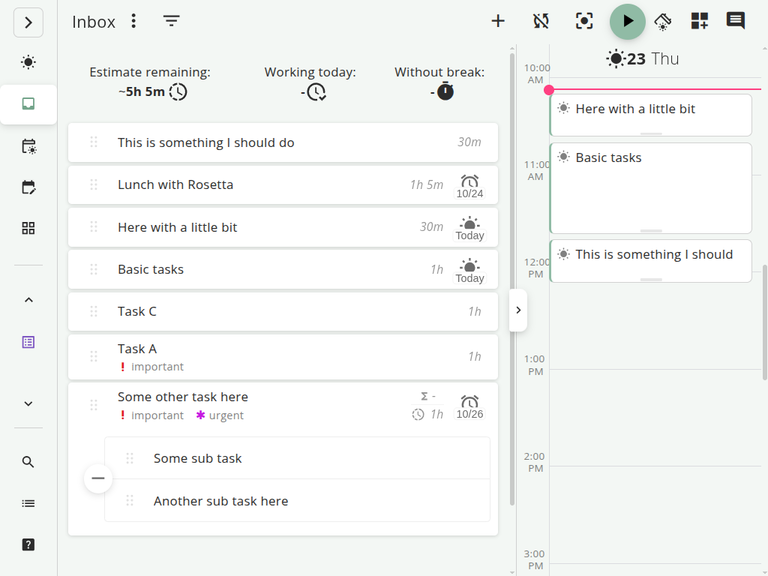
Create a project from the sidebar, then add a task to the project or to the Today view. Tasks can have notes, estimates, reminders, subtasks, and links, which makes the app useful for work that starts in an issue tracker but needs local planning.
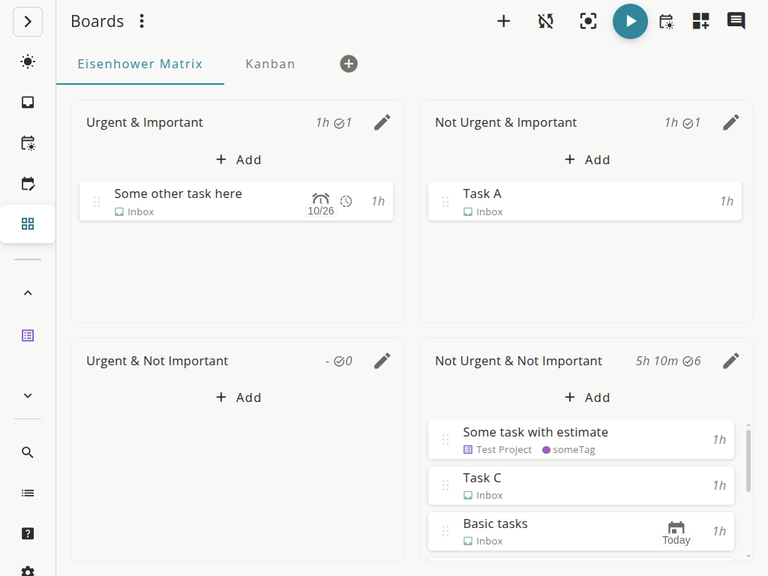
To start time tracking, select a task and use the play button. When you stop the timer, Super Productivity keeps the tracked time with the task so you can review what you worked on later. This is useful for client work, daily summaries, or comparing estimates with actual time.
The schedule view lets you place tasks on a day plan next to calendar items. If you use Google Calendar or another supported integration, connect it from the settings after the basic setup is working.
Super Productivity is local-first. On Linux desktop builds, user data is stored under ~/.config/superProductivity/. The Docker and browser versions store data in browser storage. If you want access from multiple devices, open Settings and configure one of the sync options such as WebDAV, Nextcloud, Dropbox, or Super Sync.
For backups and migration, use the Sync and Export/Import section in Settings. Export a backup before switching package formats or moving from the desktop app to the browser version.
Update Super Productivity
If you installed the Flatpak version, update it with:
Terminal
flatpak update com.super_productivity.SuperProductivityIf you installed the Snap version, updates happen automatically, but you can refresh the package manually:
Terminal
sudo snap refresh superproductivityFor AppImage, deb, and rpm installs, download the newer file from the latest release page and install or replace it using the same method you used above. For Docker, pull the newer image and recreate the container with the same port mapping. Since the browser stores the web app data, replacing the container does not migrate browser profiles or sync settings.
Troubleshooting
flatpak: command not found
Flatpak is not installed. On Ubuntu, Debian, and derivatives, install it and add Flathub:
Terminal
sudo apt install flatpak
flatpak remote-add --if-not-exists flathub
On Fedora, RHEL, and derivatives, install Flatpak with:
Terminal
sudo dnf install flatpakFlatpak cannot find the Super Productivity app
The Flathub remote is probably missing or disabled. Run flatpak remotes and confirm that flathub is listed. If it is missing, add it with the flatpak remote-add command shown above.
The AppImage does not start
Some distributions need a FUSE compatibility package for AppImages. On Ubuntu 24.04 and newer, install:
Terminal
sudo apt install libfuse2t64On older Ubuntu and Debian releases, use:
Terminal
sudo apt install libfuse2On Fedora, RHEL, and derivatives, install:
Terminal
sudo dnf install fuse-libsAfter installing the package, make the AppImage executable again and run it from the terminal so you can see any remaining error message.
The deb install searches the repositories instead of the local file
Use ./ before the file name when installing from the current directory: sudo apt install ./superProductivity-amd64.deb. Without ./, apt treats the argument as a package name from a repository.
The Docker web app opens but your data is missing
The Docker container serves the app, but task data is stored in the browser profile. Open the same browser and profile you used before, or configure sync from inside Super Productivity before switching devices or browsers.
ng: command not found when building from source
Install the Angular CLI globally:
Terminal
npm install -g @angular/cliAlternatively, run the local CLI through npx ng serve after npm install finishes.
Conclusion
Flatpak is the simplest install path for most Linux desktops, while Snap, AppImage, deb, rpm, Docker, and source installs cover the cases where you need a specific package format or deployment style. After installation, create a project, add a few tasks, and configure backups or sync before relying on Super Productivity for daily work.