GitHub CLI: Manage Repositories, Issues, and Pull Requests
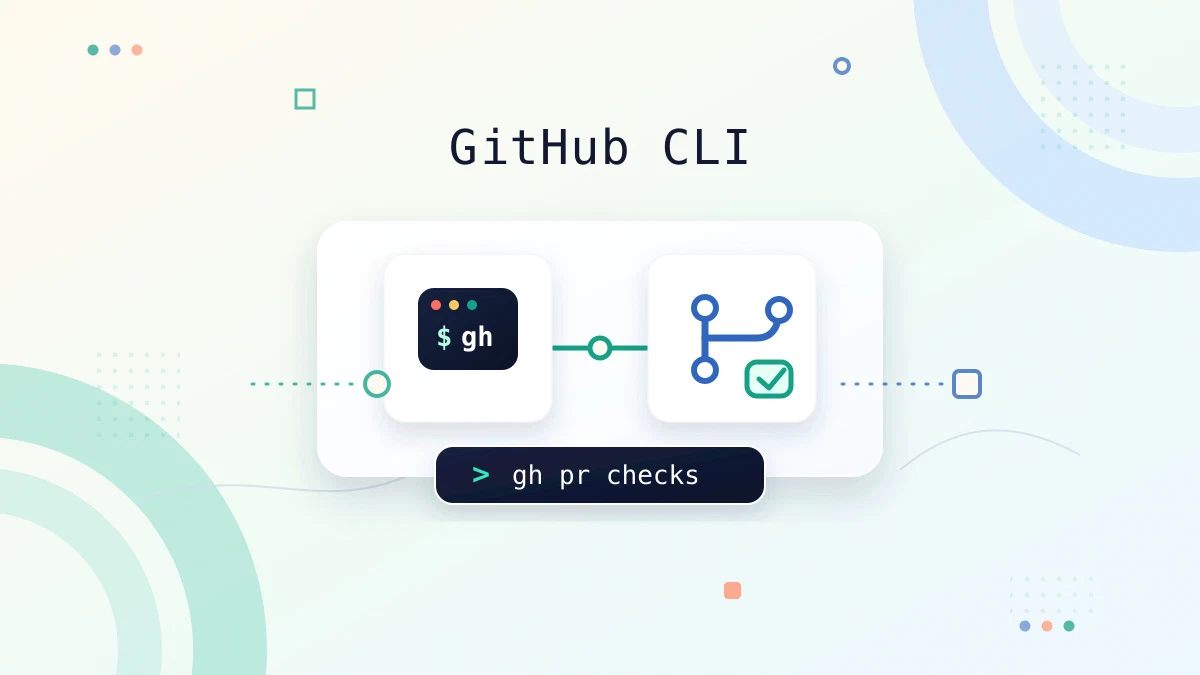
Switching between a terminal and a browser can slow down routine GitHub work. You may only need to create a pull request, check a workflow failure, or open an issue, but each task normally requires finding the right page and clicking through several screens.
GitHub CLI, available through the gh command, brings these operations into your terminal. It works with repositories, pull requests, issues, releases, GitHub Actions, and the GitHub API. This guide covers the commands you will use most often in a local Git workflow.
GitHub CLI Command Syntax
The general syntax for gh commands is:
txt
gh COMMAND SUBCOMMAND [FLAGS]Most commands work against the repository in the current directory. To target another repository, use --repo OWNER/REPOSITORY with commands that support it.
Install GitHub CLI
On Ubuntu, Debian, and derivatives, update the package index and install the gh package:
Terminal
sudo apt update
sudo apt install gh
On Fedora, RHEL, and derivatives, install it with dnf:
Terminal
sudo dnf install ghConfirm that the command is available:
Terminal
gh --versionoutput
gh version 2.95.0 (2026-06-17)
Your version may differ from the example. If the command prints a version number, the installation is ready.
Authenticate with GitHub
Before gh can access your repositories, authenticate with your GitHub account:
Terminal
gh auth loginThe interactive prompt asks which GitHub host you use, whether Git should connect over HTTPS or SSH, and how you want to authenticate. For GitHub.com, the web browser method is usually the simplest option.
Check the active account and authentication scopes with:
Terminal
gh auth statusoutput
github.com
✓ Logged in to github.com account octocat
- Active account: true
- Git operations protocol: ssh
- Token scopes: 'gist', 'read:org', 'repo', 'workflow'
If you use GitHub Enterprise Server, pass its hostname:
Terminal
gh auth login --hostname github.example.comFor CI jobs and other non-interactive environments, gh can read a token from the GH_TOKEN or GITHUB_TOKEN environment variable.
Warning
Work with Repositories
To clone a repository, pass its OWNER/REPOSITORY name:
Terminal
gh repo clone cli/cliThis runs the appropriate Git clone operation using the authentication and protocol configured for your account.
From inside a local repository, display its description, default branch, and README with:
Terminal
gh repo viewOpen the current repository in your browser by adding --web:
Terminal
gh repo view --webYou can also create a GitHub repository from an existing local project. Run the following command from the project directory:
Terminal
gh repo create my-project --private --source=. --remote=origin --pushThe options perform the following actions:
--private– Creates a private repository. Use--publicwhen the repository should be public.--source=.– Uses the current directory as the repository source.--remote=origin– Adds the new GitHub repository as theoriginremote.--push– Pushes the local commits after creating the repository.
Before using --push, check the files that are about to be published with git status and confirm that secrets, local configuration, and generated files are excluded through .gitignore.
Manage Pull Requests
List open pull requests for the current repository with:
Terminal
gh pr listoutput
Showing 2 of 2 open pull requests in owner/project
ID TITLE BRANCH CREATED AT
#42 Add health check endpoint feature/health about 2 hours ago
#38 Update deployment docs docs/deployment about 3 days ago
To create a pull request from the current branch, use:
Terminal
gh pr createGitHub CLI prompts for the title, body, base branch, and other details. If the branch commits already contain a useful title and description, use --fill:
Terminal
gh pr create --fillTo create a draft pull request and request a reviewer in one command:
Terminal
gh pr create --fill --draft --reviewer octocatView the pull request associated with the current branch:
Terminal
gh pr viewAdd --web to open it in the browser, or specify a pull request number when it is not associated with your current branch:
Terminal
gh pr view 42 --webTo check out a contributor’s pull request locally:
Terminal
gh pr checkout 42Review its changes and status checks before merging:
Terminal
gh pr diff 42
gh pr checks 42
If the pull request is ready, merge it with a merge commit, squash commit, or rebase:
Terminal
gh pr merge 42 --squashThe merge command changes the remote repository, so review the diff and checks first.
Manage Issues
List open issues in the current repository:
Terminal
gh issue listYou can filter by label, assignee, or search query. The following command shows open bug reports assigned to you:
Terminal
gh issue list --label bug --assignee @meCreate an issue interactively with:
Terminal
gh issue createFor a quick issue with a known title and body, provide both values directly:
Terminal
gh issue create \
 --title "Deployment fails when the cache is empty" \
 --body "The deployment job exits during the cache restore step."
View an issue in the terminal:
Terminal
gh issue view 27When the issue has been resolved, close it with an optional comment:
Terminal
gh issue close 27 --comment "Fixed in pull request #42."Inspect GitHub Actions Runs
GitHub CLI can list workflow runs without opening the Actions page:
Terminal
gh run listoutput
STATUS TITLE WORKFLOW BRANCH EVENT ID
X Add health check endpoint CI feature pull 123456789
✓ Update deployment docs CI main push 123450001
Inspect a specific run by passing its ID:
Terminal
gh run view 123456789For a failed run, show only the logs for failed steps:
Terminal
gh run view 123456789 --log-failedWatch a running workflow until it completes:
Terminal
gh run watch 123456789If a workflow supports the workflow_dispatch event, start it manually with:
Terminal
gh workflow run build.ymlUse gh run rerun 123456789 --failed when you need to retry only the failed jobs from an existing run.
Create and Download Releases
To create a release from an existing Git tag and generate notes from merged pull requests:
Terminal
gh release create v1.0.0 --generate-notesIf the tag does not exist, GitHub CLI creates it from the repository’s default branch unless you provide another target with --target.
List existing releases with:
Terminal
gh release listDownload all assets attached to a release:
Terminal
gh release download v1.0.0To publish build files when creating the release, list them after the tag:
Terminal
gh release create v1.0.0 dist/app-linux-amd64 dist/checksums.txtFormat Output for Scripts
Many gh commands support --json for structured output. For example, list pull request numbers, titles, and authors:
Terminal
gh pr list --json number,title,authorUse --jq to select and format fields without piping the result to a separate jq process:
Terminal
gh pr list \
 --json number,title \
 --jq '.[] | "#\(.number) \(.title)"'
output
#42 Add health check endpoint
#38 Update deployment docs
Structured output is more reliable in scripts than parsing the default table, which is intended for people and can change with terminal width.
Call the GitHub API
The gh api command sends authenticated requests to GitHub’s REST or GraphQL API. From inside a repository, list release tag names with:
Terminal
gh api repos/{owner}/{repo}/releases --jq '.[].tag_name'The {owner} and {repo} placeholders are filled from the current repository. To request a specific API version or media type, pass additional headers with -H.
For a POST request, use -f for string fields or -F for typed fields:
Terminal
gh api repos/{owner}/{repo}/issues \
 -f title="API-created issue" \
 -f body="Created with gh api."
This command creates a real issue. Use a test repository while learning write operations.
Create Command Aliases
Aliases shorten commands you use repeatedly. The following alias opens the current pull request in a browser:
Terminal
gh alias set pv 'pr view --web'You can then run:
Terminal
gh pvList all configured aliases with:
Terminal
gh alias listQuick Reference
| Task | Command |
|---|---|
| Authenticate | gh auth login |
| Check authentication | gh auth status |
| Clone a repository | gh repo clone OWNER/REPO |
| View the current repository | gh repo view |
| Create a repository from the current directory | gh repo create NAME --source=. --push |
| List pull requests | gh pr list |
| Create a pull request | gh pr create --fill |
| Check out a pull request | gh pr checkout NUMBER |
| Show pull request checks | gh pr checks NUMBER |
| List issues | gh issue list |
| Create an issue | gh issue create |
| List workflow runs | gh run list |
| Show failed workflow logs | gh run view ID --log-failed |
| Create a release | gh release create TAG --generate-notes |
| Call the REST API | gh api ENDPOINT |
| Create an alias | gh alias set NAME 'COMMAND' |
Troubleshooting
GitHub CLI reports that authentication is required
Run gh auth status to inspect the active account. If the credentials are missing or expired, authenticate again with gh auth login. In CI, confirm that GH_TOKEN or GITHUB_TOKEN is available to the step that runs the command.
The command targets the wrong repository
Run the command from inside the intended Git repository, pass --repo OWNER/REPOSITORY, or set a default with gh repo set-default. This is especially important in scripts that run outside a working tree.
A command returns an insufficient scopes error
The stored token does not have permission for the requested operation. Run gh auth refresh and select the additional scope requested by the error. Organization policies may also restrict token access.
gh pr create cannot find commits between branches
Push the current branch and confirm that it contains commits not present in the base branch. Use git status, git log, and git diff BASE...HEAD to check the local state before retrying.
FAQ
What is the difference between Git and GitHub CLI?
Git manages commits, branches, tags, and repository history. GitHub CLI manages GitHub features such as pull requests, issues, releases, and Actions runs. You will often use git for local history and gh for the remote collaboration workflow.
Can GitHub CLI work with private repositories?
Yes. The authenticated account must have access to the repository, and the token used by gh must include the required permissions.
How do I use a different repository without changing directories?
Add --repo OWNER/REPOSITORY to supported commands. For example, gh issue list --repo cli/cli lists issues from that repository regardless of your current directory.
Can GitHub CLI produce machine-readable output?
Yes. Commands that expose --json can return selected fields, and --jq can filter or format the result. The gh api command also supports --jq and --template.
Does GitHub CLI support GitHub Enterprise Server?
Yes. Authenticate with gh auth login --hostname HOSTNAME, then use that host for repository and API operations.
Conclusion
GitHub CLI keeps repository administration and collaboration close to your existing Git workflow. Start with gh auth login, gh repo, gh pr, and gh issue, then add Actions, releases, and gh api as your terminal workflow grows.