Brave Says This is Not a Privacy Feature, But Using Containers Has Its Perks

Brave has rolled out Containers with the Brave Browser 1.92 release, giving its Chromium-based browser something Firefox users have had for years now. And no, it is not some pre-installed extension doing the work; this functionality is built right into the browser for Linux, Windows, and macOS.
In this implementation, each container keeps its own cookies and site data storage separate from the rest, even if you visit the same website across containers. By default, this feature ships with four categories: Personal, Work, Social, and School. Each one of them can be edited or deleted to suit your workflow.
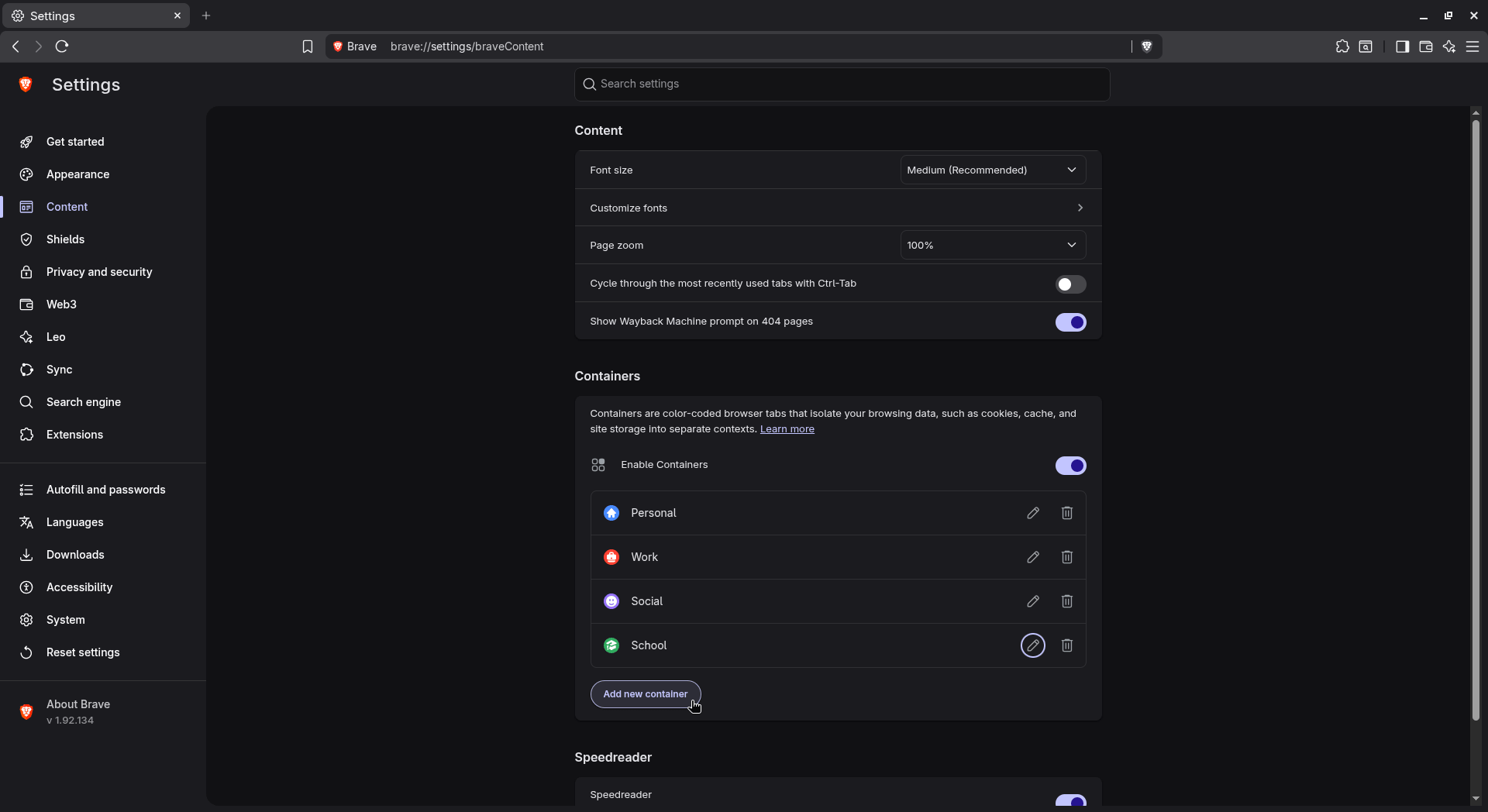
The default Container categories are useful, I must say.
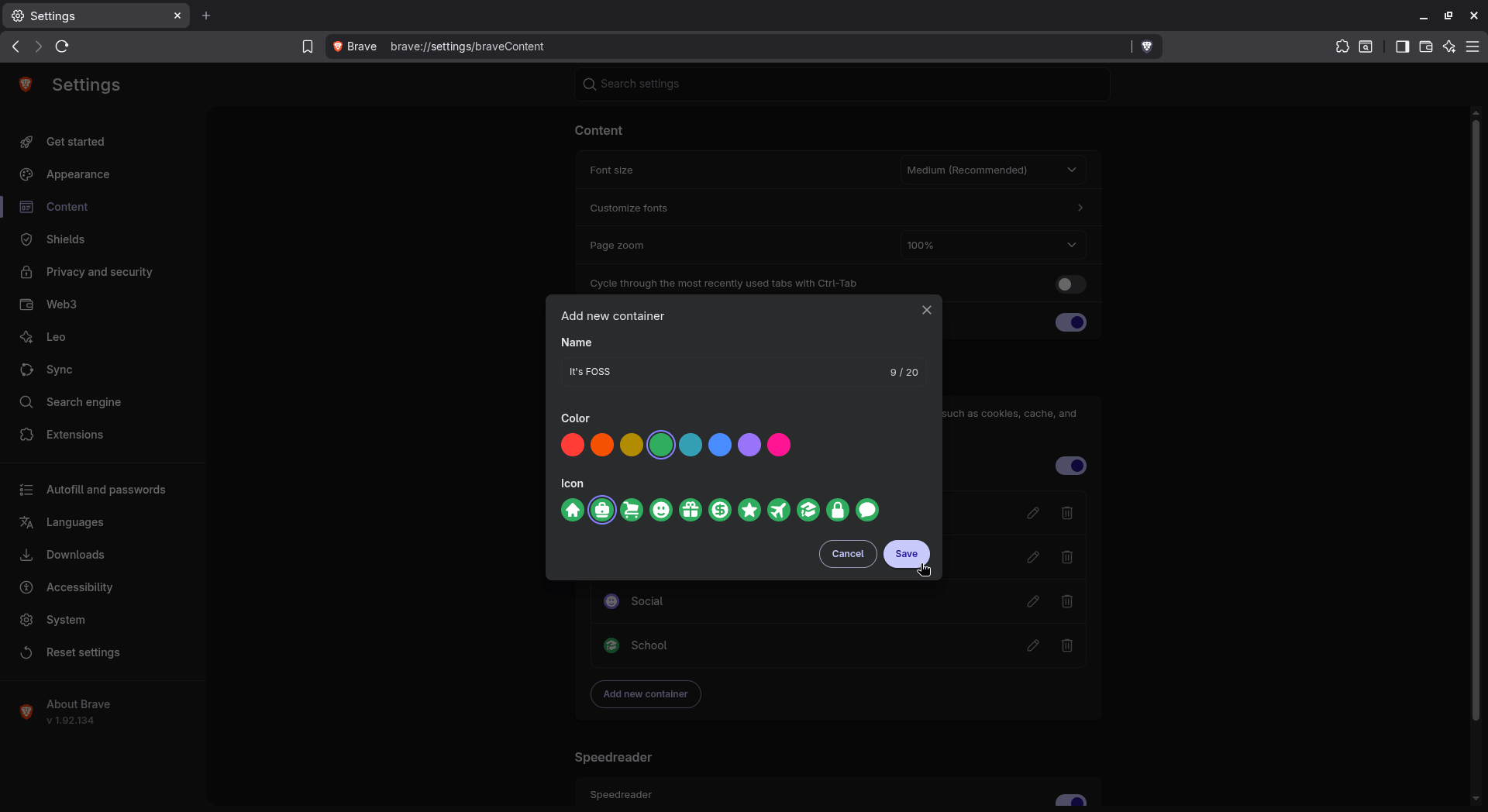
You can make new ones too! I made one to test how containers worked, named it “It’s FOSS,” and picked a color and icon for it from the available options.
The idea itself isn’t new. Brave points back to a Mozilla concept doc from 2015 that laid out the original pitch for container tabs in Firefox, complete with cookie isolation, per-container icons, and even auto-naming.
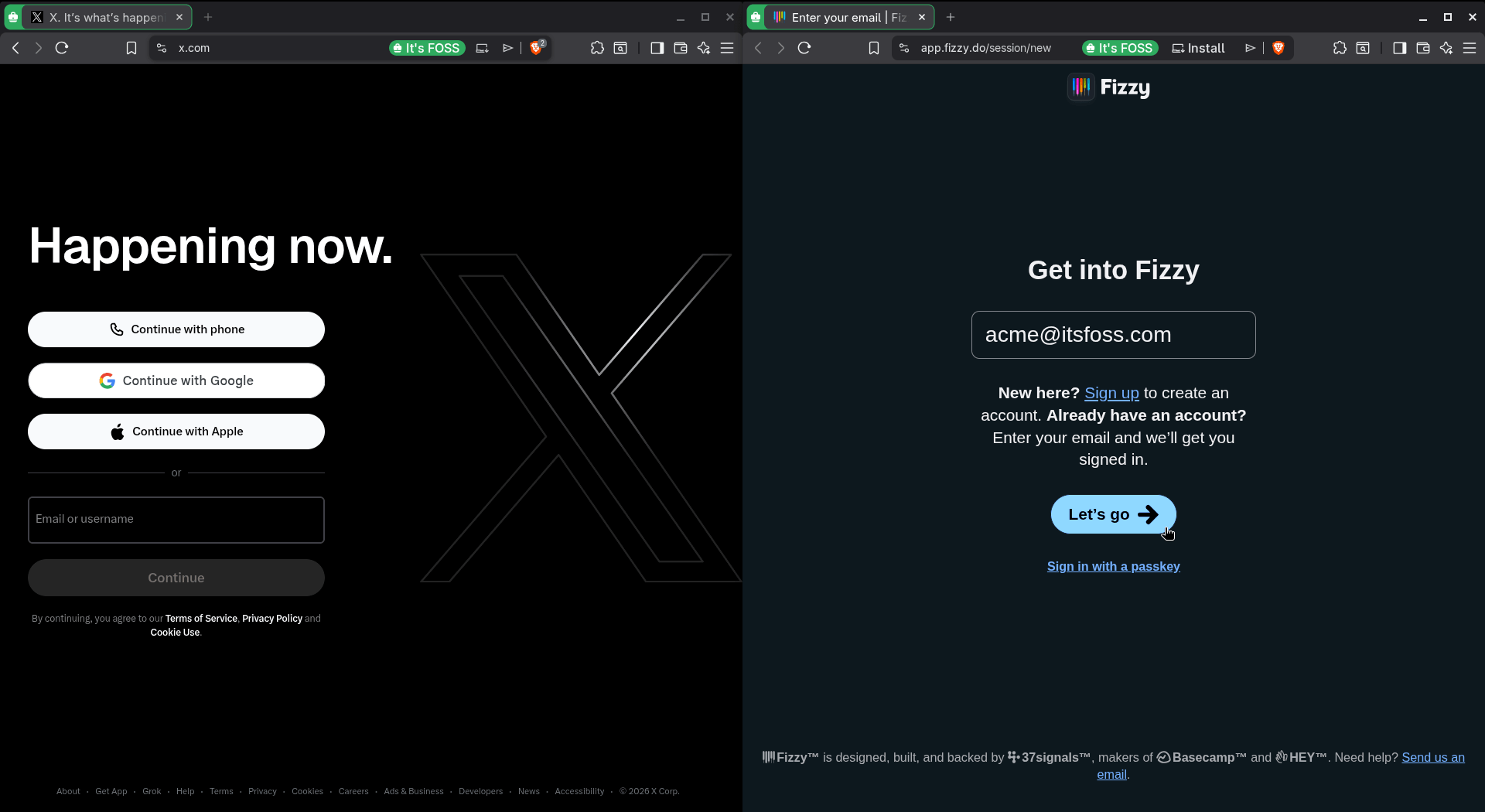
Mozilla eventually built a version of this right into the browser, with a Multi-Account Containers extension being made available for people who are unable to access Containers on their installation or want site auto-assignment and cross-device syncing.
There’s more
Alongside named containers, Brave Browser also lets you spin up a temporary one straight from the right-click menu, for whenever you want quick isolation without setting up and naming a permanent container.
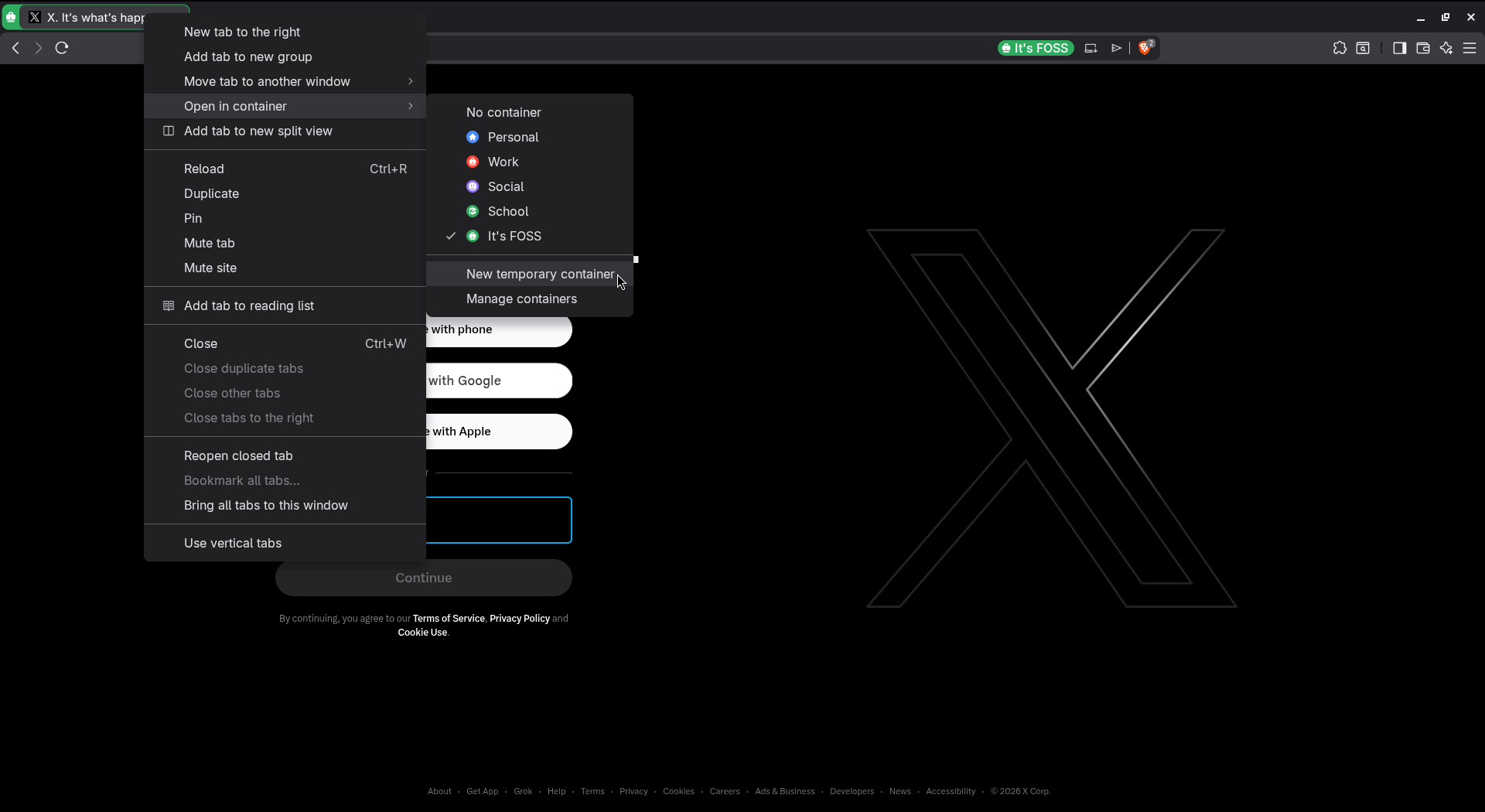
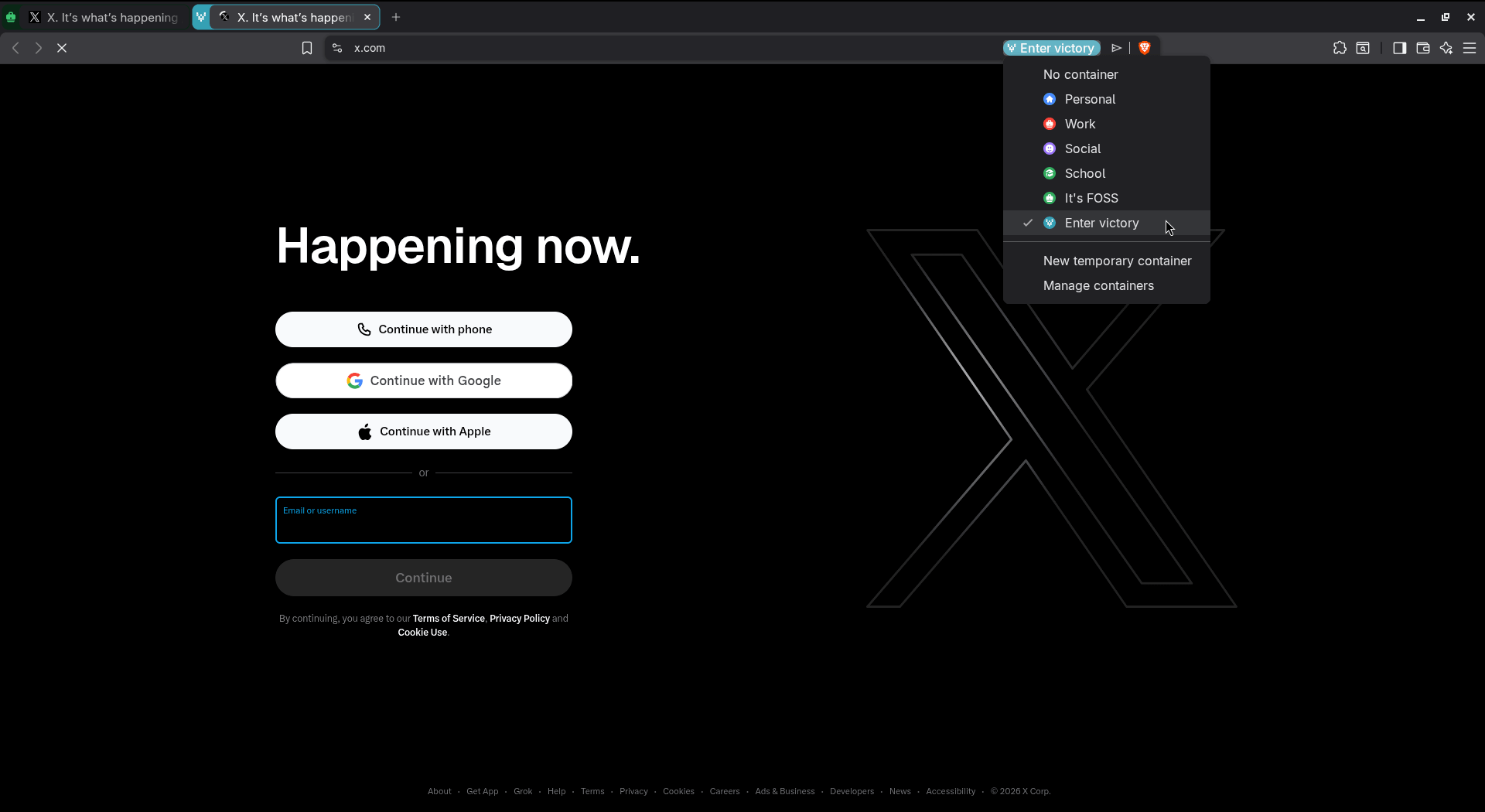
I tried it out myself, and instead of asking me to name anything, Brave auto-generated a random two-word name along with its own icon and color; mine came out as “Enter victory.”
It still worked like any other container while it was open; I just did not have to set it up first.
Another thing to watch out for is that Brave is rolling out Containers gradually, so not everyone will see it on their installation just yet, and the feature is also being offered on Brave Origin, which, if you remember, is free for Linux users.
Get access now!
If you have already updated to Brave Browser 1.92 and still don’t see a Containers option in your settings menu, then you could force-enable it by following these steps.
First, visit this address in your browser: brave://flags. Here, type containers into the search bar and click on the dropdown menu.
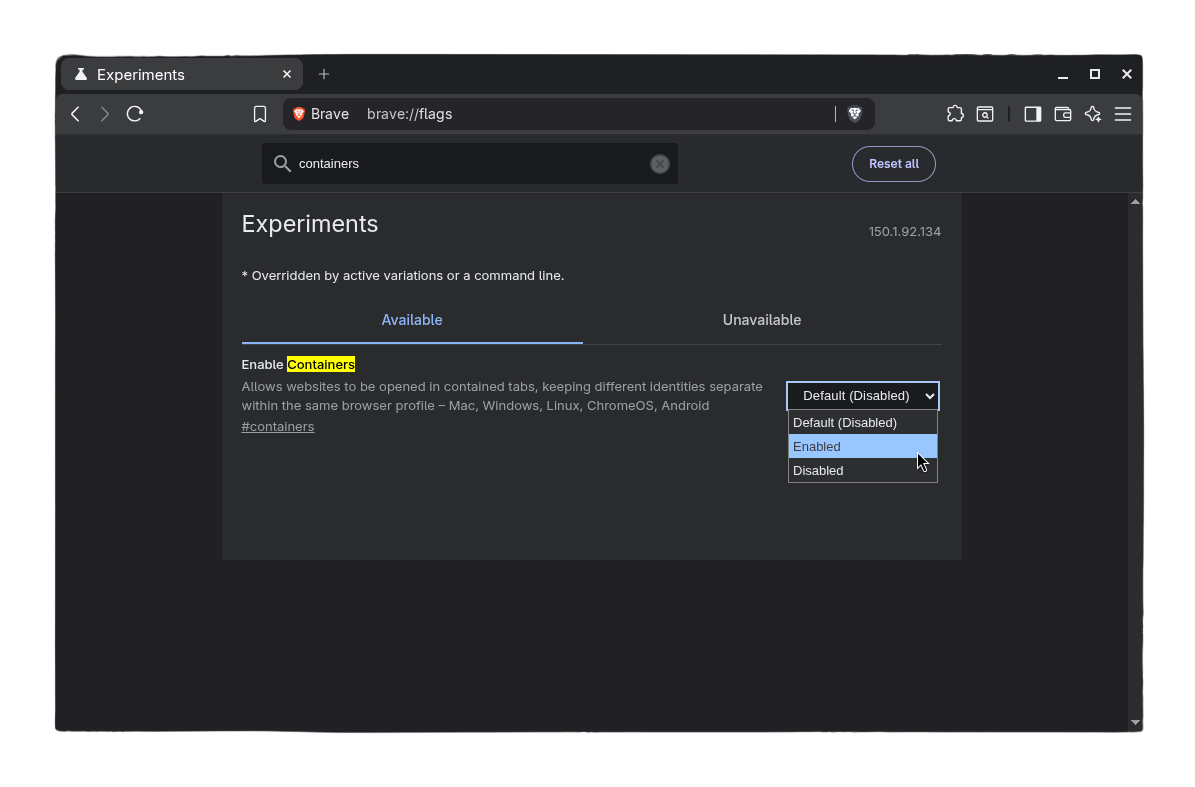
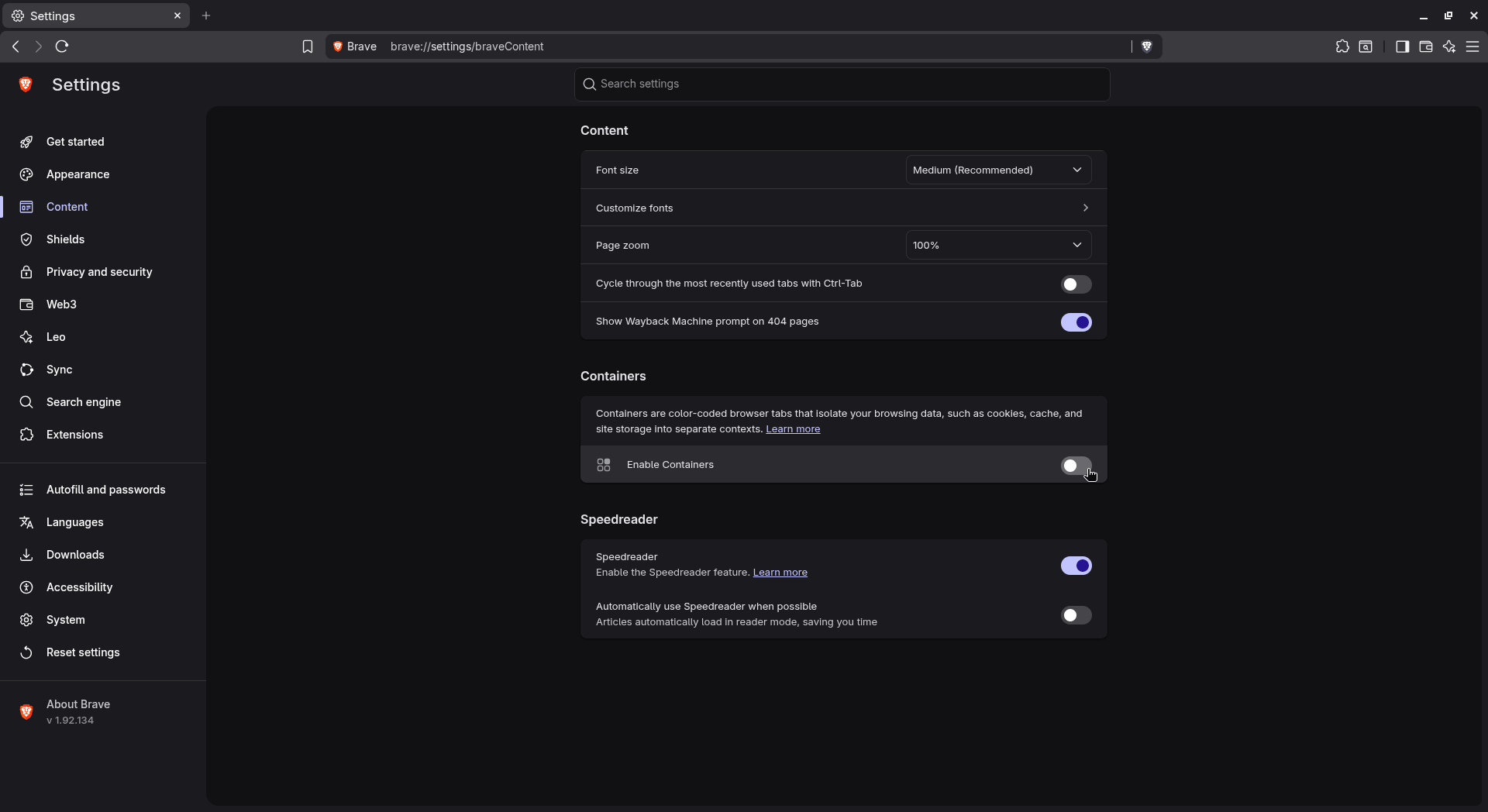
Now, click on Enabled to activate this feature on your installation and relaunch the browser. Next, visit the Settings page, and under the “Content” page, look for the Containers category and enable it.
This is how I got it running on my Fedora Workstation setup, so you should also be able to do the same on other platforms and even on Brave Origin.